A WooCommerce Stripe webhook signing secret invalid error means the secret saved in your store does not match the Stripe endpoint sending the events. Stripe’s events are rejected, and orders stay on pending payment even though the customer paid. We will find the right whsec_ secret, save it in the plugin, remove stale endpoints, rule out server interference and confirm with a test event.
Check Why Stripe Events Are Failing
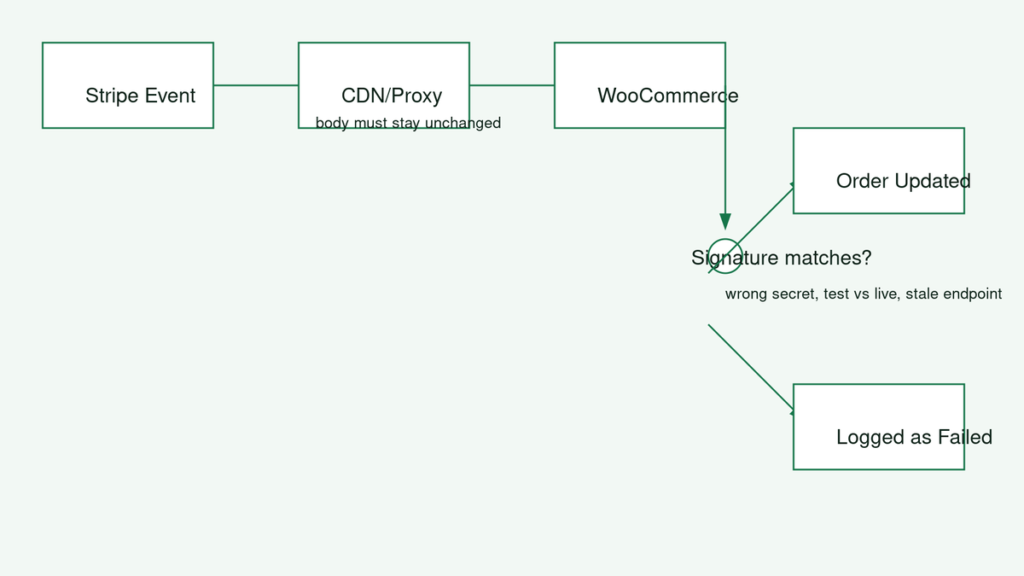
The message “The webhook was not signed with the expected signing secret” means the stored secret does not belong to the endpoint that sent the event. Confirm that before changing anything.
Read the Stripe delivery log
In Stripe, open Developers > Webhooks, click your endpoint and look at the recent deliveries. Failed deliveries with a 400 response and the signature message above usually point to a secret mismatch.
Find the stripe-webhook log files in WooCommerce
Go to WooCommerce > Status > Logs and pick the date-stamped files starting with stripe-webhook. Failed verifications are recorded there.
If both places show no events at all, the endpoint URL in Stripe is probably missing or wrong. Compare it character by character with the webhook URL shown in the plugin settings, including https and the domain with or without www.
Find the Correct Signing Secret in Stripe
Every Stripe webhook endpoint has its own whsec_ signing secret, and test mode and live mode keep separate endpoints with separate secrets.
Match the endpoint to the store URL
- In Stripe, go to Developers > Webhooks.
- Open the endpoint whose URL points to this store.
- Click Reveal under Signing secret and copy the value.
The secret must come from the endpoint that actually sends events to this store. A secret from another endpoint, such as a staging site’s endpoint, will always fail verification.
Test mode versus live mode secrets
Use the Stripe dashboard’s test-mode toggle to switch views. Copy the secret from the mode your store is running in, and repeat the process for the other mode if you use both.
Paste the Secret and Match Test or Live Mode
Open WooCommerce > Settings > Payments > Stripe and paste the whsec_ value into the Webhook secret field. Labels and menu layout differ between plugin versions, so check your own screen rather than trusting our wording.
Save and re-check the mode
A test-mode secret on a live store, or the reverse, makes every event fail verification. Before saving, confirm whether the plugin is set to test or live mode, then use the secret from that mode.
If the Webhook secret field is missing
Some plugin versions hide the field after you connect your account through the newer automatic flow. If so, look for a webhook setup or reconnect option in the Stripe settings, or create the endpoint manually in Stripe, then re-save the settings. We can’t confirm the exact label in every version.
Remove Duplicate or Stale Stripe Endpoints
A plugin update can create a new Stripe endpoint with a new secret while the old endpoint keeps receiving events. The old one then fails against the secret you just pasted.
Spot an old endpoint still sending events
- Go to Developers > Webhooks and list every endpoint for the current mode.
- Compare each URL with the webhook URL your store expects.
- Delete stale duplicates, leaving one endpoint whose secret is saved in the store.
Once events verify again, new orders should update on their own. Orders that are already stuck may need you to resend the event from the Stripe delivery log or update the order status by hand.
When rotating the secret makes things worse
Rolling a secret creates a new value, which mismatches the store until you paste it in. Only roll it if the current secret is lost or leaked, and update WooCommerce straight away.
Fix Server Issues That Change the Signed Request
Stripe signs the raw request body. If anything modifies or re-encodes that body before PHP reads it, verification fails even with the correct secret.
Caching, security and proxy plugins
Exclude the webhook URL from page caching, and check security plugins for rules that rewrite or block POST requests. If a CDN or web application firewall sits in front of the site, disable its request-body inspection for the webhook URL.
Firewall rules and Stripe IP addresses
Make sure the server firewall allows Stripe’s published webhook IP addresses, and that the site serves a valid HTTPS certificate. Blocked requests show up in Stripe’s delivery log as timeouts or connection errors rather than 400 responses. Check Stripe’s documentation for the current IP list and TLS requirements.
Confirm the Stripe-Signature header reaches PHP
On a staging copy only, add this to a child theme’s functions.php or a code snippets plugin. It writes the incoming header to a file.
add_action( 'init', function () {
	if ( empty( $_SERVER['REQUEST_URI'] ) || false === strpos( $_SERVER['REQUEST_URI'], 'wc-api=wc_stripe' ) ) {
		return;
	}
	$header = isset( $_SERVER['HTTP_STRIPE_SIGNATURE'] )
		? sanitize_text_field( wp_unslash( $_SERVER['HTTP_STRIPE_SIGNATURE'] ) )
		: 'MISSING';
	file_put_contents(
		WP_CONTENT_DIR . '/stripe-signature-debug.log',
		gmdate( 'c' ) . ' ' . $header . "\n",
		FILE_APPEND
	);
}, 1 );
Send a test event, then open wp-content/stripe-signature-debug.log. If it says MISSING, something upstream is stripping the header. Afterwards, remove the snippet and delete the file. This is a diagnostic step, not a permanent fix. The URL check assumes your webhook URL contains wc-api=wc_stripe, so adjust it if yours differs.

Send a Test Event and Confirm Orders Update
- In Stripe, open your endpoint under Developers > Webhooks and send a test event to it.
- Check that the delivery shows a successful 2xx response.
- Open WooCommerce > Status > Logs and confirm no new
stripe-webhookfailures appear for that time. - Place a small test-mode order and confirm it moves from pending payment to processing.
If it still fails, compare the new failure in the Stripe delivery log with the steps above, starting with the secret and the mode. If it persists, contact us and we can review the setup with you.
Most cases come down to a secret from the wrong endpoint or the wrong mode, so check those first. Duplicate endpoints and server-side body changes are the next suspects. If the error outlasts these steps, our WordPress and WooCommerce development services cover payment fixes like this.
Frequently asked questions
Where do I find the Stripe webhook signing secret?
In Stripe, go to Developers > Webhooks and open the endpoint pointing to your store. Click Reveal under Signing secret to see the whsec_ value. Make sure you are view