A WooCommerce order pending after stripe payment usually means Stripe took the money but never told WooCommerce, most often because the webhook is missing, wrong or pointing at the wrong mode. You will confirm the charge in the Stripe Dashboard, check the webhook endpoint, resend the missed event, and read the logs if it still fails.
We also cover On hold orders, auto-cancelled orders, and how to move an order to Processing without risking a double refund or an unpaid shipment.
Confirm in the Stripe Dashboard that the payment succeeded
Start outside WooCommerce. Open the Stripe Dashboard, go to Payments, and search for the customer’s email or the order total. The payment should show a status of Succeeded.
Match amount, currency and mode
Compare the amount and currency with the WooCommerce order total. Then check the Test mode toggle in the Dashboard. A Test charge will never update a Live order, so a payment found only in Test mode explains the stuck order.
Note the payment intent ID
Open the payment and copy the payment intent ID, which starts with pi_. You will use it to search the logs and the order notes later.
If the payment failed or never appeared, the order is correctly pending and no webhook fix is needed. If it succeeded, our Stripe webhooks setup guide covers the endpoint in more detail.
Understand what Pending payment and On hold really mean
The status on the order tells you which problem you have, so read it before changing any settings. A Stripe payment that succeeded can still leave the order in three different states.
Pending vs On hold vs Processing
- Pending payment: WooCommerce has not received payment confirmation. This is the status that points to a webhook problem.
- Processing: the order is paid and waiting to be fulfilled.
- On hold: normal for bank transfer and cheque orders. It is not a fault for those methods.
Authorize-only (manual capture) orders
A card order can also land in On hold when the Stripe gateway is set to authorize only. The funds are reserved on the card but not captured, so Stripe may show the payment as uncaptured.
In that case the fix is to capture the payment in Stripe, not to repair a webhook. Skip the webhook steps and capture the payment instead.
Check the Stripe webhook endpoint and mode
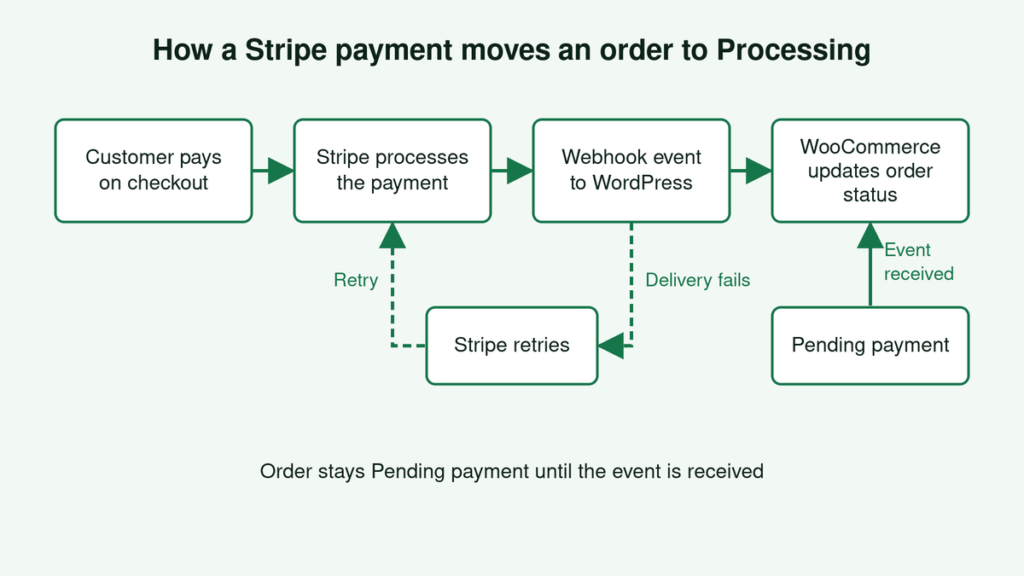
Webhooks are the usual reason a paid Stripe order stays pending. Stripe tells your site about the payment through a webhook, and if that message never arrives, the order never moves.
Find the Live and Test tabs
- Go to WooCommerce > Settings > Payments > Stripe > Settings.
- Under Account details, open Configure connection.
- Check both the Live and Test tabs. The keys and webhook must match the mode the payment used.
Check the endpoint matches your site
The endpoint should be your own site’s Stripe webhook URL, a wc-api route. Copy it from your settings, not from another site or guide. Then confirm the live endpoint is registered in the Stripe Dashboard.
Reconfigure webhooks when the version is older or the endpoint is missing
From version 8.6.1 onward, the Stripe extension sets up webhooks automatically when you connect, so check your version first. On older versions, or if the endpoint is missing, reconfigure the webhook manually.
Resend the missed event and confirm delivery
Once the endpoint is correct, resend the event from Stripe rather than marking the order paid by hand. A resent event lets WooCommerce update the order itself and write its usual notes.
Resend the event in Stripe
- In the Stripe Dashboard, open the payment and find its
payment_intent.succeededevent, or open the webhook endpoint and select that event. - Choose to resend it to your endpoint.
- Reload the WooCommerce order and read the order notes.
Check delivery responses
The event should show as delivered with a 200-range response. A 4xx or 5xx response means the request reached your site but failed, so the order will not move.
Allow time for automatic retries
Stripe retries failed live-mode deliveries for up to three days. Some stuck orders may update on their own once the endpoint works.
If the order is still pending after a successful delivery, check the logs next.
Read the gateway logs and order notes
Enable debug logging
Go to WooCommerce > Settings > Payments > Stripe > Settings and turn on debug logging, then save. Place a new test order or resend the event so the log has fresh entries to read.
Search by payment intent ID
- Open WooCommerce > Status > Logs.
- Choose the source named
woocommerce-gateway-stripeand select the latest file. - Search for the payment intent ID or the order number.
Common error messages to look for
Look for signature errors, 404 or 500 responses on the webhook, and messages saying the order was not found. Then open the order and read its notes for failed or duplicate webhook messages.
Turn debug logging off when you finish, because log files grow quickly. If you manage many stores, wp wc order_note create in WP-CLI adds notes from the command line.
Watch for hold stock, restores and other edge cases
Hold stock auto-cancellation
Go to WooCommerce > Settings > Products > Inventory and read the Hold stock (minutes) value. WooCommerce cancels unpaid orders after that interval and releases the stock. A slow webhook can lose the race, leaving a charge in Stripe and a cancelled order.
Restores, migrations and staging
After a restore or clone, Stripe events can reference order IDs that no longer match, so the webhook finds no order. Confirm the live site, not staging, receives the events.
Guest checkout setting
An old GitHub report described UPE orders stuck pending for guests who create accounts. Enabling Allow customers to place orders without an account under WooCommerce > Settings > Accounts & Privacy avoided it. It is not confirmed for current versions.
Adaptive Pricing and currency checks
Users report pending or auto-cancelled orders on plugin 10.8.3 after an Adaptive Pricing fix in 10.8.2. This is unconfirmed, so test on a staging copy first. Also compare the currency Stripe charged with the order currency, since Optimized Checkout and Adaptive Pricing can change it.
Move the order to Processing safely
Only change the status once Stripe shows the payment as succeeded and the amount and currency match the order total. Until then, leave the order alone.
Let the webhook do the update first
Resend the event from the Stripe Dashboard and let WooCommerce move the order itself. That keeps the order notes and stock handling consistent.
Manual update with an order note
- Open the order and add a private note with the Stripe payment intent ID and the reason for the manual change.
- Set the status to Processing and click Update.
- Check that stock was reduced and the customer and admin emails were sent.
Do not ship or refund anything before you have reconciled the order against Stripe. Otherwise you risk sending goods for an unpaid order or refunding a charge twice.
When to ask for help
If several orders are stuck, or the webhook keeps failing after the endpoint is correct, the cause is likely hosting or configuration. Our team can review it.
Start with the Stripe Dashboard: confirm the payment succeeded, then check that the webhook endpoint exists and matches the Live or Test mode of that payment. Resend the event and read the Stripe log before you touch the order status. If several orders stay stuck or deliveries keep failing, contact us and we will review the hosting and gateway setup with you.
Frequently asked questions
Why is my WooCommerce order still pending payment after Stripe charged the customer?
WooCommerce sets an order to Processing only when it receives confirmation from Stripe, and that confirmation usually arrives through a webhook. If the webhook is missing, points at the wrong site, or uses the wrong mode, the charge succeeds in Stripe while the order stays on Pending payment. Restores, staging clones and a short Hold stock interval can cause the same symptom.
Do I need to set up Stripe webhooks manually for WooCommerce?
Not always. Recent versions of the Stripe extension are reported to configure the webhook automatically when you connect your account (from 8.6.1 onward, per a WooCommerce guide), so check your installed version first. On older versions, or if the endpoint is missing in the Stripe Dashboard, add it manually and use the exact URL shown in your own Stripe settings.
How long before WooCommerce cancels a pending payment order?
It depends on the Hold stock value under WooCommerce > Settings > Products > Inventory. When that time passes, WooCommerce cancels unpaid pending orders and releases the stock. A customer can still be charged if confirmation arrives late, so look at this setting when paid orders show as Cancelled.
Should I manually mark a pending Stripe order as paid?
Only as a last resort, and only after you have confirmed in Stripe that the payment succeeded and that the amount and currency match the order. Resending the event from the Stripe Dashboard is safer because WooCommerce then updates the order itself. If you do change the status by hand, add an order note with the payment intent ID and your reason first.