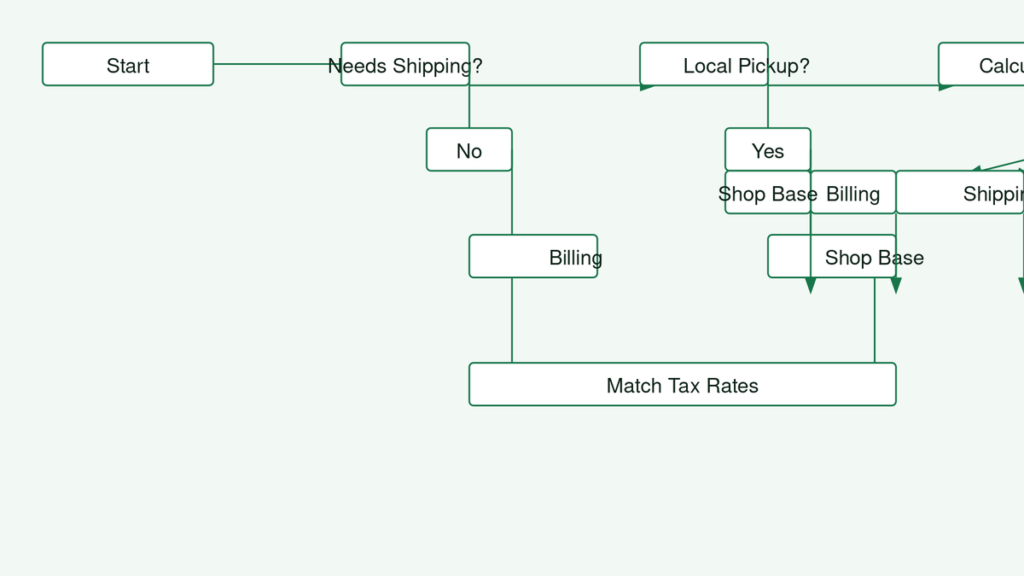
If you are seeing woocommerce tax not using customer shipping address at checkout, the customer enters one address but the tax line follows the billing address or your shop address. This post explains how WooCommerce picks the address it taxes, and how to find which setting, product type, rate or plugin is behind the wrong result. The steps follow the order we check them in. The diagram at the top of this post shows the decision path.
WooCommerce has one main setting, “Calculate tax based on”, plus a few built-in exceptions. Most cases of woocommerce wrong tax at checkout come down to one of those, or to a tax rate that does not match the address.
Check the tax and shipping settings first
Start here, because it takes two minutes and fixes a lot of stores. Menu labels can differ slightly between versions, so look for the closest wording if yours does not match exactly.
Calculate tax based on
Go to WooCommerce > Settings > Tax and find Tax options. The “Calculate tax based on” dropdown offers customer shipping address, customer billing address or shop base address. To calculate tax based on the shipping address in WooCommerce, choose the shipping option and save.
If you cannot see a Tax tab, tax is not enabled yet. Tick the tax option in the General settings first.
Shipping destination
Next, open WooCommerce > Settings > Shipping > Shipping options and check Shipping destination. If it is set to force shipping to the customer billing address, the shipping address is replaced by the billing address. Tax then follows billing, which is the usual reason behind woocommerce tax uses billing address reports.
Switch it to default to the customer shipping address if that is what you want.
Default customer location
Under WooCommerce > Settings > General, “Default customer location” decides what WooCommerce assumes before the customer has typed an address. Options include no location, the shop country or geolocation. This affects the tax shown on cart and product pages, so it can look wrong until the customer fills in the checkout form.
Save your changes, then re-test with a fresh cart. An old cart can keep showing earlier totals.
When WooCommerce uses billing or shop address on purpose
Sometimes nothing is broken. WooCommerce has a few built-in exceptions, and each one has a reason.
Virtual and downloadable products
If every item in the cart is virtual or downloadable, no shipping is needed, so there is no shipping address to use. WooCommerce falls back to the billing address.
For example, a store sells a printed manual and a PDF version. A cart with only the PDF is taxed on billing. Add the printed manual and the cart needs shipping, so the shipping address applies. A mixed cart with at least one physical product still needs shipping.
To confirm, open each product in the cart and check the Virtual and Downloadable boxes in Product data.
Local pickup
When a local pickup method is chosen, WooCommerce bases tax on the shop base address by default. The goods are collected at your location, so that is where the sale happens. Check which shipping method is selected in the cart and which method type it is.
If you need different behaviour, a developer can adjust it with custom code. The filter below controls which shipping method IDs count as local pickup. Test it on staging first:
add_filter( 'woocommerce_local_pickup_methods', function ( $methods ) {
    // Add or remove method IDs here.
    return $methods;
} );
Same-as-billing checkbox
If the customer leaves “Ship to a different address?” unticked, the shipping address equals the billing address. That is expected. When testing, tick the box and enter a different address, otherwise you are only testing billing.

Tax rates that do not match the address
Sometimes WooCommerce uses the right address but finds no matching rate, so it looks as though the address was ignored. This is the main cause of woocommerce tax rates not applying.
Country, state, postcode and city
Go to WooCommerce > Settings > Tax, open the tax class and review the rate table. A rate only applies when its country, state, postcode and city all match what the customer typed, or are left blank to match everything.
- Check state codes against what the checkout form submits.
- Postcodes can use ranges and wildcards. Check the exact format your rate table accepts in the field’s help text or the WooCommerce documentation.
- Test with a real postcode from the area, not a made-up one.
- Look at the city field too. A typo or different spelling can stop a match.
Address fields matter here. If customers can skip or mistype them, see our post on WooCommerce cart and checkout optimization.
Tax classes and product tax status
Each product has a tax class (Standard, Reduced rate, Zero rate or a custom one). The rate must exist in that class. A rate added to Standard will not apply to a product in Reduced rate.
Also check the product’s Tax status. If it is set to None, no tax is charged, whatever the address. For shipping, look at the Shipping tax class option under Tax options, and make sure a shipping rate exists in the class it uses.
Prices entered inclusive of tax
If “Prices entered with tax” is set to inclusive, WooCommerce can remove or adjust your base-location tax for customers elsewhere. This confuses testing, because the displayed price may change even when the rate is fine. Test with a customer address in your own tax zone and one outside it, and compare.
Plugins, caching and checkout quirks that override tax
If settings and rates look right, something else may be changing the result. Common sources are automated tax extensions, custom code using tax filters, and multi-currency or B2B plugins. We cannot say exactly how each one behaves, so test rather than assume.
To see what location WooCommerce is actually using, log it temporarily on staging:
add_filter( 'woocommerce_get_tax_location', function ( $location ) {
    error_log( print_r( $location, true ) );
    return $location;
}, 999 );
The log shows country, state, postcode and city. Remove the snippet afterwards.
Conflict test on staging
- Create a staging copy of the store.
- Switch to a default theme.
- Disable non-essential plugins, keeping WooCommerce.
- Re-test with different billing and shipping addresses.
- Re-enable plugins one at a time until the problem returns.
Check whether the store uses the Checkout block or the classic shortcode checkout. Custom code can behave differently in each, so test the one your customers see.
Cache and checkout refresh
Cart, checkout and account pages must be excluded from page caching. When the address changes, the order review should refresh and update the totals. If the tax line never changes, check the browser console for JavaScript errors and confirm the cache exclusions.
Payment failures at checkout are a separate issue. See our guide to WooCommerce payment errors.
How to test the fix properly
- Note your current settings before changing anything.
- Open a private window, so no saved session interferes.
- Add a physical product to the cart.
- Enter a billing address in one tax zone and a shipping address in another, with different rates.
- Watch the tax line update as you change the shipping address.
- Place a test order and check the tax shown on the order screen.
If you test with a logged-in account, clear its saved billing and shipping addresses first. Stored addresses can make it look like the checkout ignored what you typed.
If the rates, plugins or custom code are too tangled, we can review the store for you. Start with our free website check or contact us, and see our WooCommerce services for what we build and fix.
Frequently asked questions
Why is WooCommerce calculating tax on the billing address instead of the shipping address?
The most common reasons are that “Calculate tax based on” is set to billing address, the shipping destination is forced to billing, or the cart contains only virtual products that need no shipping. Check those three settings first, then re-test with a physical product in the cart.
Where is the ‘Calculate tax based on’ setting in WooCommerce?
Go to WooCommerce > Settings > Tax and look under Tax options. The choices are customer shipping address, customer billing address and shop base address. Make sure taxes are enabled in the General settings first, or the Tax tab will not appear.
Does WooCommerce use the shop address for local pickup tax?
Yes, by default WooCommerce bases tax on the shop base address when a local pickup method is chosen, since the goods are collected at the store. If you need different behaviour, that is something a developer can adjust